TM APN Settings for Android and iPhone (2025)
APN means Access Point Name settings to make an internet connection between your mobile and carrier’s network. TM Telecom enables services like 4G LTE or 5G internet, sending/receiving MMS, and tethering or hotspot through correct APN Settings.

You can only access fast internet services when you set your APNs correctly. Below are the correct steps and correct APN use for both Android and iPhone to make your internet smooth and faster. But before its settings, you must proceed with TM SIM Registration.
Fastest APN settings for Android
Step-1: Go to your Android mobile settings
Step-2: Then go to Mobile Network or Connections
Step-3: Click on the SIM icon in which your TM SIM is located from SIM1 or SIM2
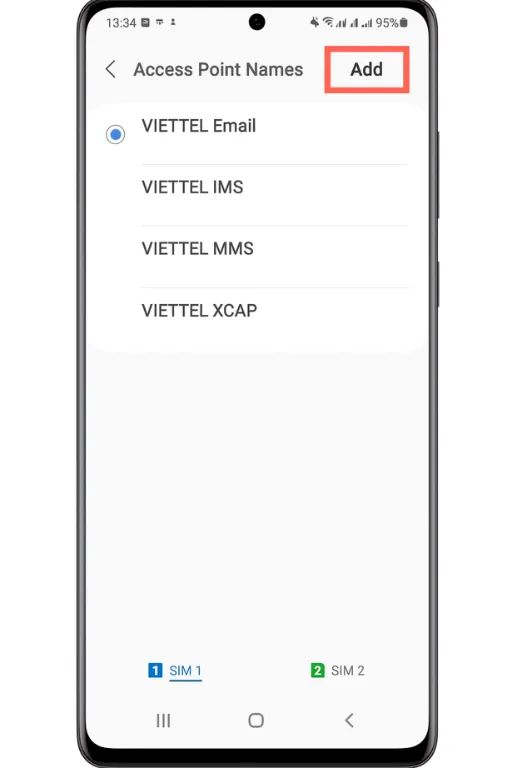
Step-4: Scroll down to find the “Access Point Names” option and select it

Step-5: Click on the “+” or “add” button to add a new APN
Step-6: Set the APN Name as MyGlobe Internet/ TM Internet
Step-7: Fill the APN section with internet.globe.com.ph or fast.globe.com.ph

Step-8: Keep Proxy as Not Set
Step-9: Keep Port as Not Set
Step-10: Keep Username as Not Set
Step-11: Keep Password as Not Set
Step-12: Keep Server as Not Set
Step-13: Keep MMS Proxy as Not Set
Step-14: Keep MMS Port as Not Set
Step-15: Set MCC as 515
Step-16: Set MNC as 03
Step-17: Keep Authentication Type as Not Set
Step-18: Set APN Type as default, supl
Step-19: Set APN Protocol as IPv4
Step-20: Set APN Roaming Protocol as IPv4
Step-21: Keep Bearer as Not Specified
Step-22: Set MVNO Type as None
Step-23: Keep MVNO Value as Not Set
Step-24: Click on the ”✓” tick button on the right side of the screen to save the settings
Tip: After APN Settings, you can test internet speed by checking TM SIM balance using the GlobeOne App, or you can subscribe to promos such as ANS20 and All Net Surf 30 to check internet speed.
How to Edit and Delete APN in Android
Edit APN in Android
- Go to Settings
- Click on Mobile Network or Connections
- Select SIM1 or SIM2 where your TM exists
- Tap on Access Point Names
- Select the APN you want to edit
- Change the values whatever you want to edit such as Proxy, MCC, etc.
- Tap on the 3-dot menu and on the top right click Save
Delete APN in Android
- Follow Steps 1–4 above
- Select the APN you want to delete
- Tap on the three-dot menu
- Choose Delete APN
TM SIM APN Settings for iPhone
Go to your iPhone Settings
Scroll down and tap on Cellular
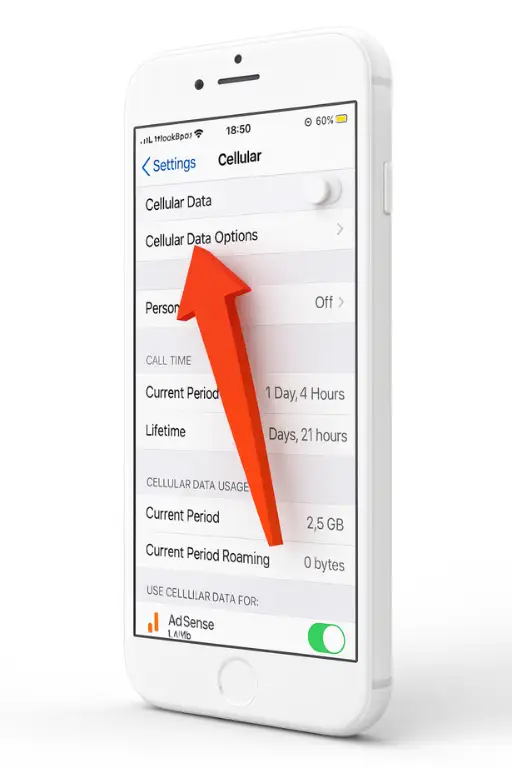
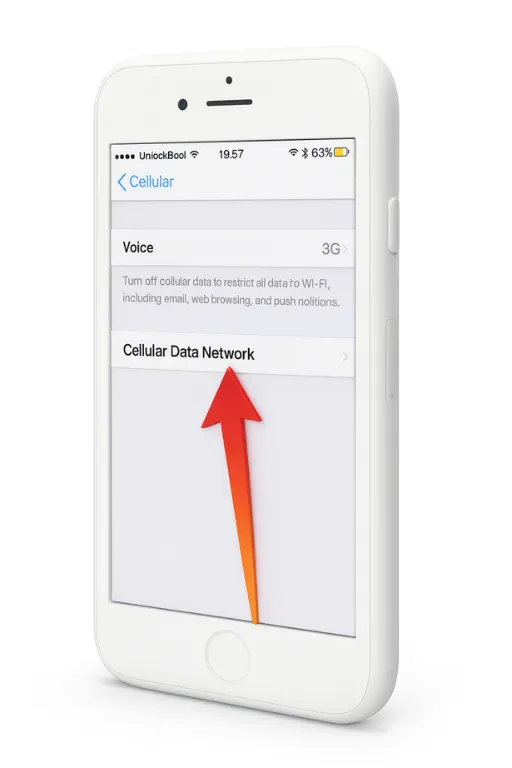
Tap on Cellular Data Network
Set the APN Name as MyGlobe Internet/ TM Internet
Fill the APN section with internet.globe.com.ph or fast.globe.com.ph

Keep Username as Not Set
Keep Password as Not Set
Scroll down and find the MMS Settings section
Keep MMS Proxy as Not Set
Keep MMS Max Message Size as Not Set
After filling these, press the Back button to save the APN settings
Restart your iPhone to apply the new APN settings
How to Edit and Delete APN in iPhone
Edit APN in iPhone
- Go to Settings in iPhone
- Then choose Cellular
- Click on Cellular Network option
- Tap on the APN fields you want to edit
- Edit the values you want to change
- Press Back to save automatically
Delete APN in iPhone
You can’t delete APN directly in iPhone. You can only reset all APNs to default so follow these steps:
- Go to Settings
- Tap General
- Tap Reset or click Transfer/Reset iPhone in new versions
- Select Reset Network Settings
- Your APN settings will reset to the default carrier settings
How to test Internet Speed
- Go to the browser on your Android or iPhone
- Search “test internet speed” on Google
- Open the first website and test downloading and uploading speed
- If it’s good then no need to do anything
Tips for Fast Internet
- Always use the official APN settings which are given above to get internet faster.
- Within APN Settings, you can edit APN Protocol from IPv4 to IPv4/IPv6, the speed will be fast.
- Never insert random proxy or port values, it usually slows down the internet.
- After APN settings restart your phone to run the internet smoothly.
- Choose 4G/LTE or 5G in the network settings of your phone.
- Move to the 5G TM areas for better internet.
- Go outside of your home if you are facing TM SIM No Signal problem.
- Keep your apps clear and clean by removing all the cache.