Fix TM SIM No Signal services in Android and iPhone (Activation)
Sometimes after completion of TM SIM Registration process, users face TM SIM No signal services for their Android and iPhone devices. This is because of various issues that need to be fixed for activating it in different ways. Let’s uncover these issues and solutions to them one by one.
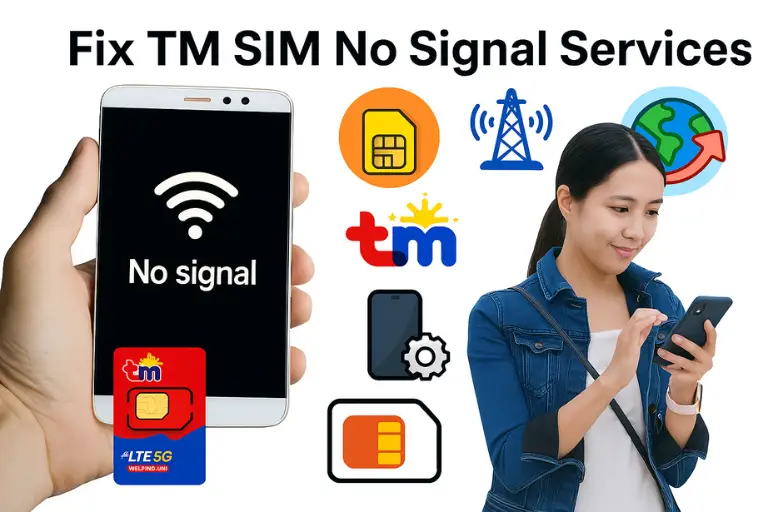
Always keep in mind the issues you are facing with this signal loss because every second person has an individual issue regarding no signals. TM Officials provide contacts online, which is also the best option to solve the issue, and we will discuss each and everything regarding helping users.
What are the issues of TM SIM no signal?
The problems are different on different devices, such as for Android and iPhone. Whereas users who are living abroad face different problems. Following are the problems categorized and discussed below:
- Issues of No signals in Android
- Common errors in iPhone
- All no signal problems Abroad
1 Why No signals in Android?
Note: Checking your TM SIM Balance through 143# code is the best way to check whether the signals are working or not.
2 Common errors in iPhone
- You may have inserted the SIM in the wrong way in your iPhone, which causes the no signal problem.
- Check your iPhone network settings to confirm if they are correct or not; wrong settings can block signals.
- If you are living in an area where network provider towers are not set, you may face this issue.
- If you have enabled airplane mode in your iPhone, you can’t avail services of phone calls, SMS, and internet.
- Your SIM slot or SIM may be damaged, and even though you continuously try to access signals, it doesn’t work.
- There might be mobile internal issues with the antenna or a network outage due to technical problems by network providers.
3 All no signal problems Abroad
Disabled Roaming: Maybe you have not enabled data roaming in your settings, which can cause no internet services.
Wrong Network Selection: Sometimes, selecting the wrong network settings can cause no signal service, which prevents you from calling, SMS, or using internet services.
Inactive eSIM: If you are using an eSIM and it’s not activated, it can cause no signal issues.
Physical SIM Inserted Wrong: Another reason for abroad users is if they don’t insert the physical SIM in the phone correctly, it can also prevent them from availing services.
How to fix TM SIM No Signal Problems?
Below is a step-by-step discussion for resolving the above-given issues of no signals of your SIM, categorized as follows:
- Fix No Signal issues in Android and iPhone
- Fix No Signal issues for Abroad users
1 Fix No Signal issues in Android and iPhone
Insert SIM correctly
- First, turn off your phone, then remove the SIM from the SIM slot.
- Clean the SIM properly with a soft cloth.
- Now check the corner cut point in the SIM tray.
- Put your SIM corner cut area in that point in the tray.
- Re-insert the SIM in your phone and switch on your phone.
Solution for Damaged SIM
- First, remove the SIM and test it in a different phone.
- If not working, try to find scratches or cracks on the golden chip.
- If you find scratches and confirm the SIM is damaged, talk to the chatbot to request a SIM Replacement.
- Talk to Timmy (Chatbot) and click the “SIM Replacement” option.
- Enter your SIM number and verify OTP.
- Talk to the agent and tell him/her about the damaged SIM issue.
Network Outage Solution
- First, check TM Official pages on social media to see if a network outage really exists.
- If it exists, then you should contact them in three possible ways:
- First way: Call the TM official by clicking it.
- Second way: Contact TM Official through the Messenger Chatbot.
- Third way: You can get help by accessing the GlobeOne App. Just open the app, click on the “Help” button with your number, and report your problem.
Resolve Location Issue
- If you are living in a basement, you may face signal issues, so you should move to an area where TM signals work better.
- You can also track all the 5G locations of TM SIM.
- Check if your area exists in this 5G coverage by clicking the button below.
- Move closer to the window of your home or go outside to check if the signal stabilizes.
- If the issue persists, then contact TM official through hotline numbers and report your issues.
Fix Damaged Mobile Antenna
- Go to the technical shop and ask to check whether the antenna is working fine or not.
- If the mobile antenna is damaged or faulty, then ask him/her to replace it.
- Many Android phones use a small coaxial cable for antenna connection, and it’s cheaper to replace the antenna in Android.
- For iPhone users, antennas are integrated into the logic board or chassis, so avoid visiting a local technician and go to the Apple repair service shop.
Phone Software Outdated
If you are running outdated software on your mobile, which is causing no signals in SIM, fix it by following this guide:
In Android:
Go to Settings → System → Software Update → tap Download and Install.
In iPhone:
Go to Settings → General → Software Update → tap Download and Install.
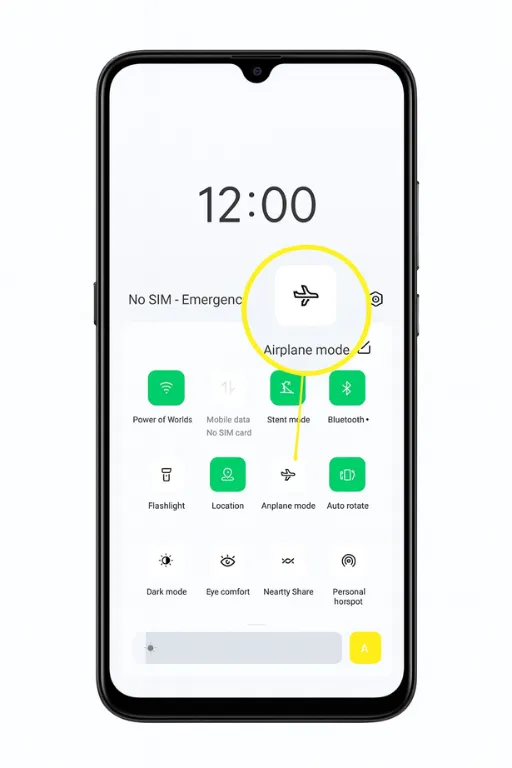
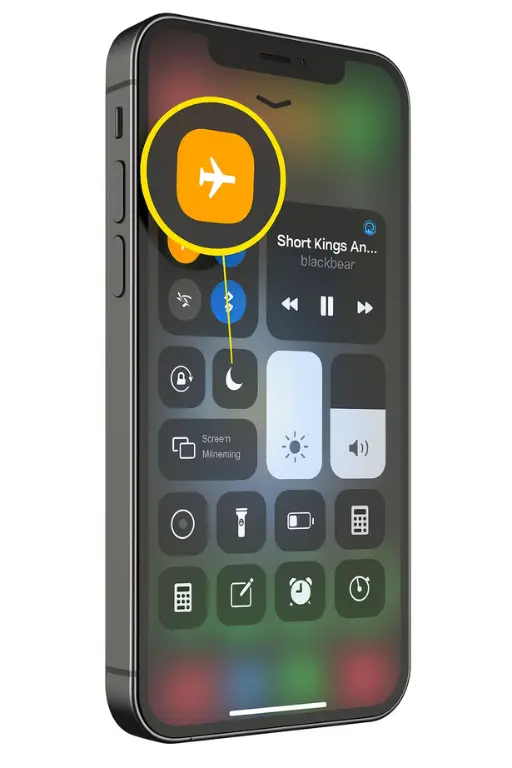
Disable Airplane Mode
In Android:
- Swipe down from the top of your Android screen, click the “airplane” icon.
- Or open Settings and go to Network & Internet/Connections, then turn off Airplane Mode
In iPhone:
- Open your phone screen with Face ID and swipe down from the top-right.
- Disable “airplane” mode by clicking on it.
- On iPhones with a Home button, swipe up from the bottom, tap the airplane icon to turn it off.
- You can also open Settings on iPhone, find the toggle for Airplane Mode, and then turn it off at the top.
2 Fix No Signal issues for Abroad users
Enable Data Roaming
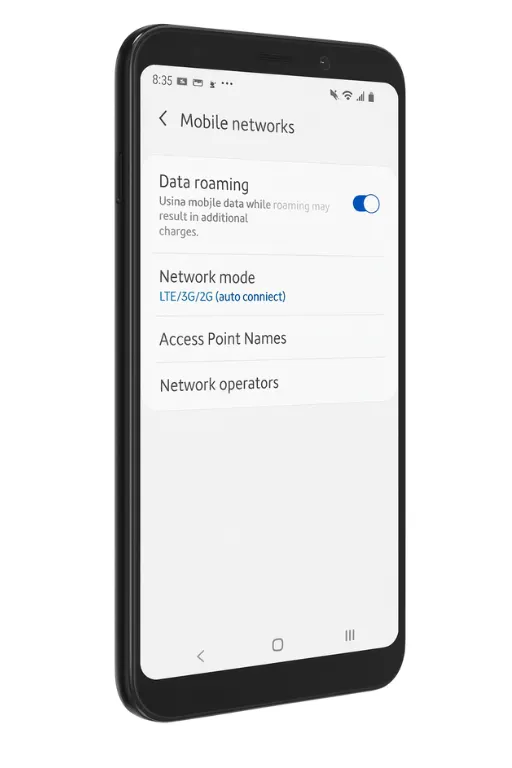
In Android:
- Go to Settings and open Mobile Network option.
- Enable Data Roaming “ON”.
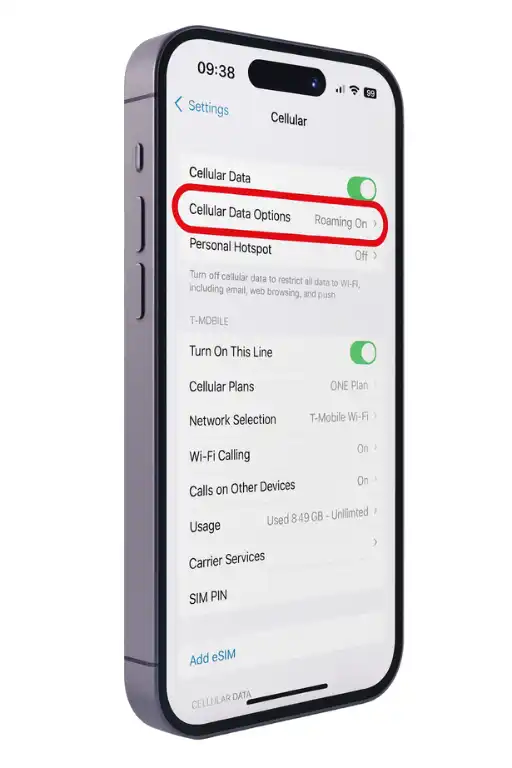
In iPhone:
- Go to Settings in your iPhone.
- Open and click on “Cellular”.
- Within Cellular, choose “Cellular Data Options” and enable Data Roaming.
Network Selection Settings
In Android:
- Go to Settings and select Mobile Network.
- Open Network Operators and click Search.
- Choose the local carrier and set it.
In iPhone:
- Go to Settings in your iPhone and click “Cellular”.
- Tap “Network Selection” and turn off Auto.
- Pick the local carrier option and set it.
Activate eSIM
In iPhone:
- Make sure your iPhone is connected to the internet.
- Open Settings app and click Cellular.
- Tap Add eSIM or Set Up Cellular.
- Use the camera to scan the eSIM QR code given by your carrier.
- Tap Add Cellular Plan (ignore any pop-up warning).
- Your eSIM with your mobile number will now appear, ready to use.
In Android:
- First, connect your phone to the internet or Wi-Fi.
- Open Settings app and hit Connections.
- Tap SIM Card Manager option.
- Select Add Mobile Plan and Scan Carrier QR Code.
- Scan the QR code provided by your carrier.
- Confirm it, and your eSIM with your mobile number will be activated.